For the complete documentation index, see llms.txt. Markdown versions of all docs pages are available by appending .md to any docs URL.
LLM
Route requests to supported LLM providers with the agentgateway binary.
Verified Code examples on this page have been automatically tested and verified.Configure the agentgateway binary to route chat completion requests to an LLM provider.
Before you begin
Install the agentgateway binary.
Download and install the agentgateway binary. Alternatively, you can manually download the binary from the agentgateway releases page.
To install the latest release:
curl -sL https://agentgateway.dev/install | bashExample output:
  % Total    % Received % Xferd  Average Speed   Time    Time     Time     Current
                                 Dload  Upload   Total   Spent   Left    Speed
100  8878  100  8878    0     0  68998      0 --:--:-- --:--:-- --:--:-- 69359

Downloading https://github.com/agentgateway/agentgateway/releases/download/v1.5.0/agentgateway-darwin-arm64
Verifying checksum... Done.
Preparing to install agentgateway into /usr/local/bin
Password:
agentgateway installed into /usr/local/bin/agentgateway
- Get credentials for the provider that you want to use. The steps below cover API keys, cloud credentials, GitHub Copilot, custom providers, and local Ollama models.
Steps
Route to an LLM provider through agentgateway.
Step 1: Set up provider credentials
Set up credentials for the provider that you want to use. For production credential options, see the provider reference.
Note
Each step in this guide has a tab for every provider that the UI supports. Not all of the tabs fit on the screen at once, so scroll the tab bar to the right to reach the rest. The tabs are in the same order as the Provider dropdown list in the UI.
export OPENAI_API_KEY='<your-api-key>'Step 2: Start agentgateway
You add the model from the UI in the next steps, so you can start agentgateway without a config file. When you run agentgateway without specifying a config, it bootstraps a basic config at ~/.config/agentgateway/config.yaml and uses it automatically.
agentgatewayExample output:
info app serving UI at http://localhost:4000/uiStep 3: Enable LLM
Open the agentgateway UI.
On the first run, the Welcome to Agentgateway wizard opens. Click Enable LLM, and then click Continue.
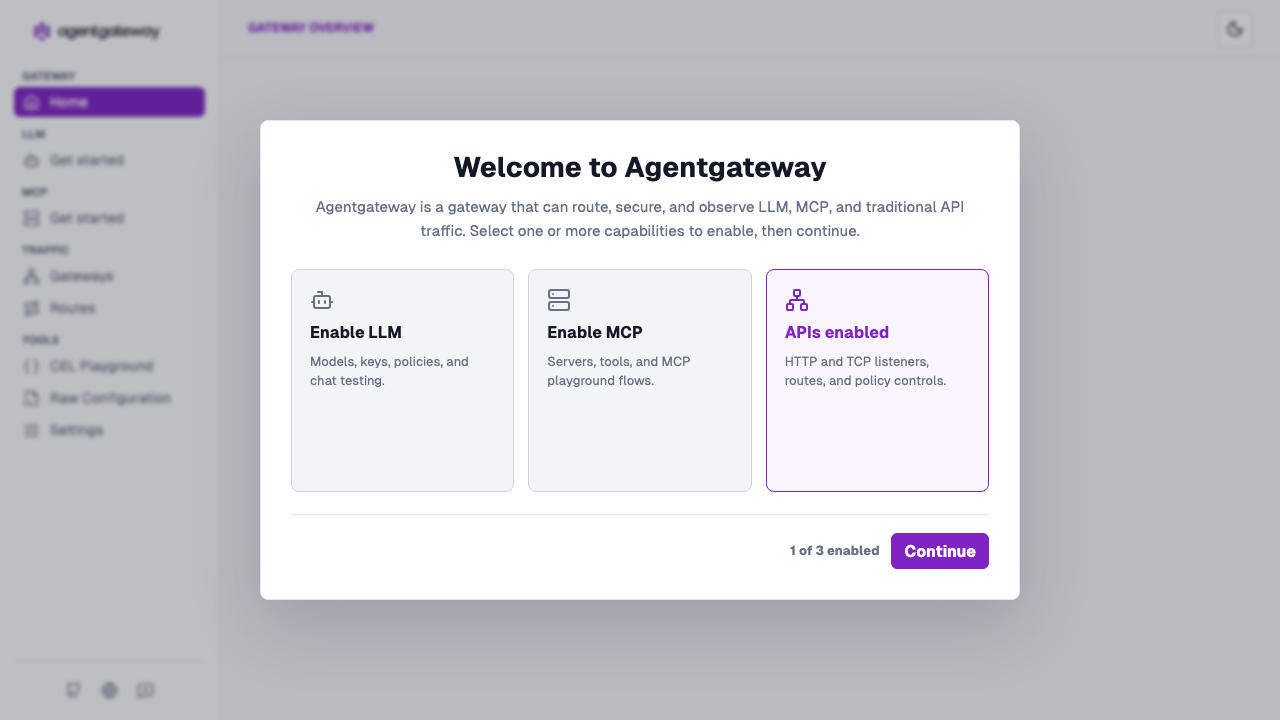
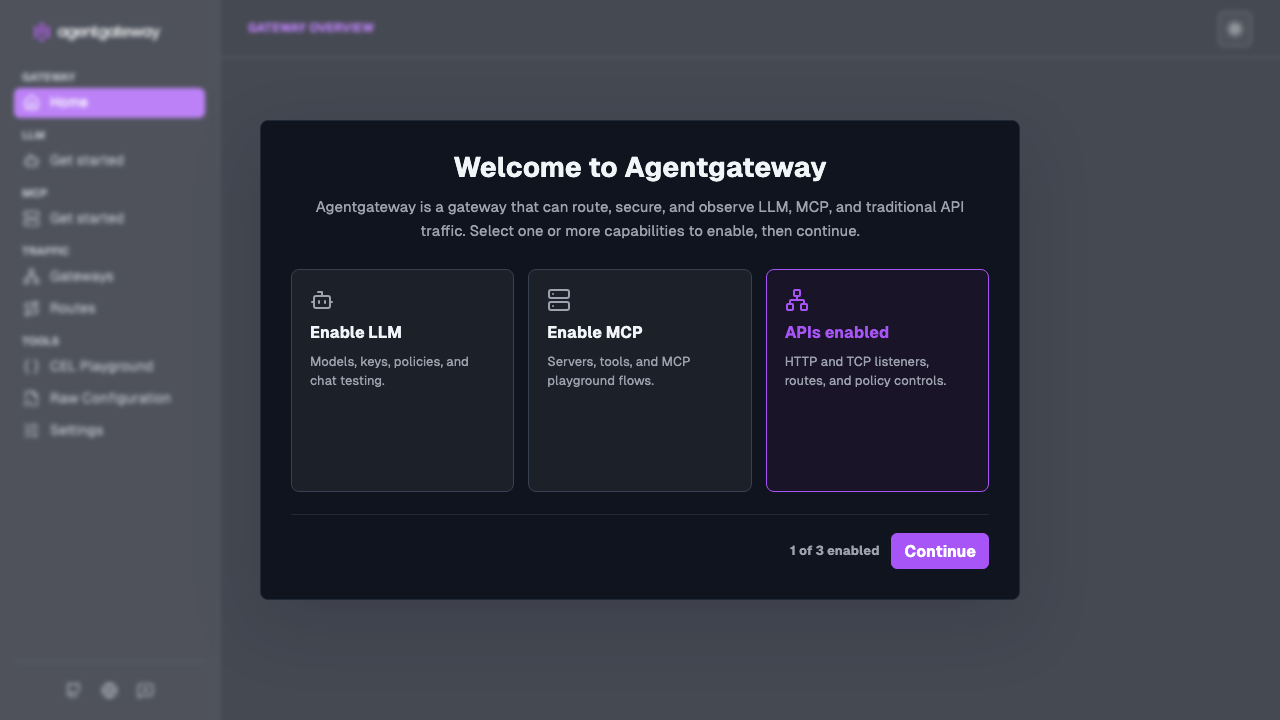
The Gateway Overview home page opens, with rows for LLM, MCP, and Traffic.
Step 4: Add a model
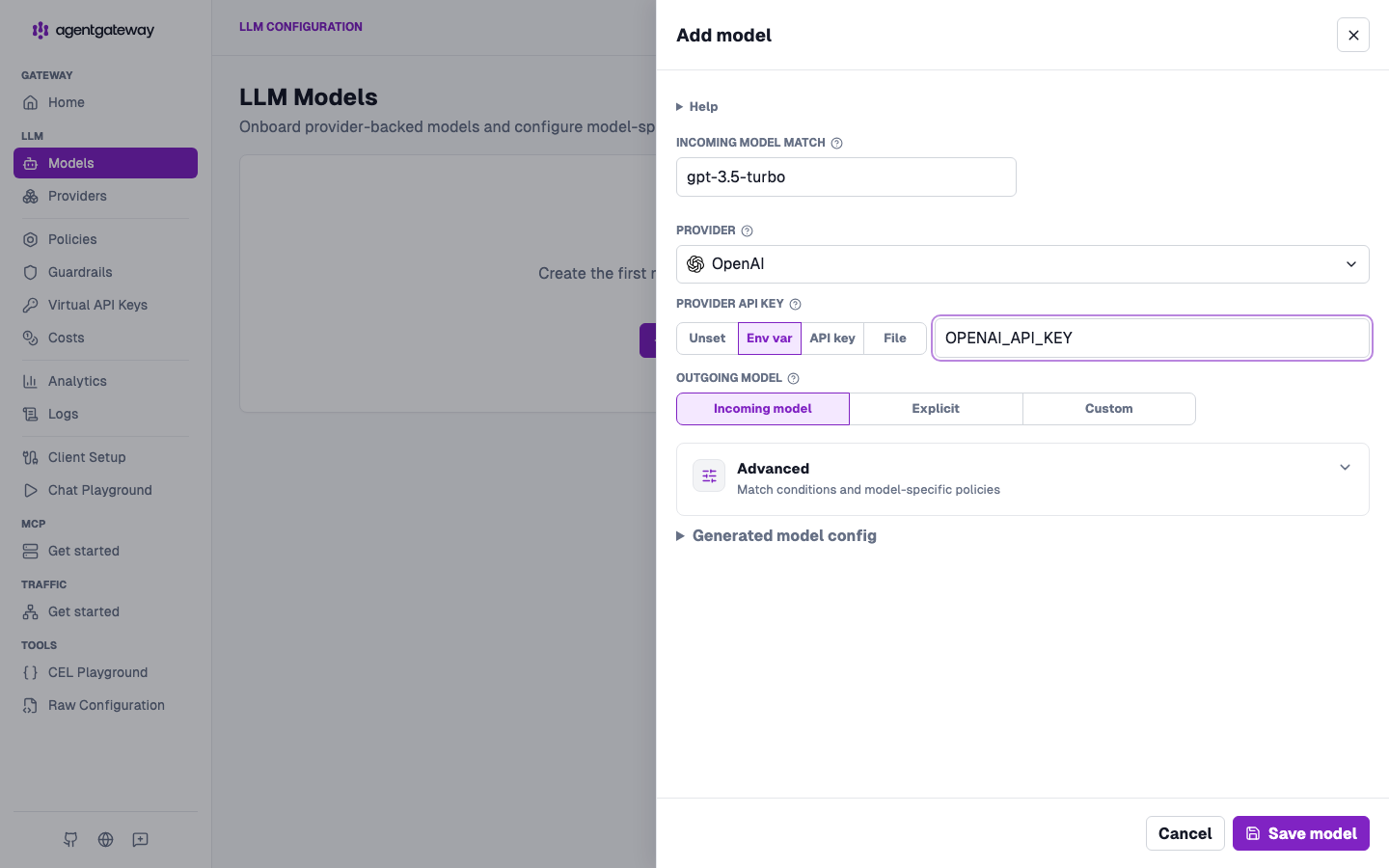
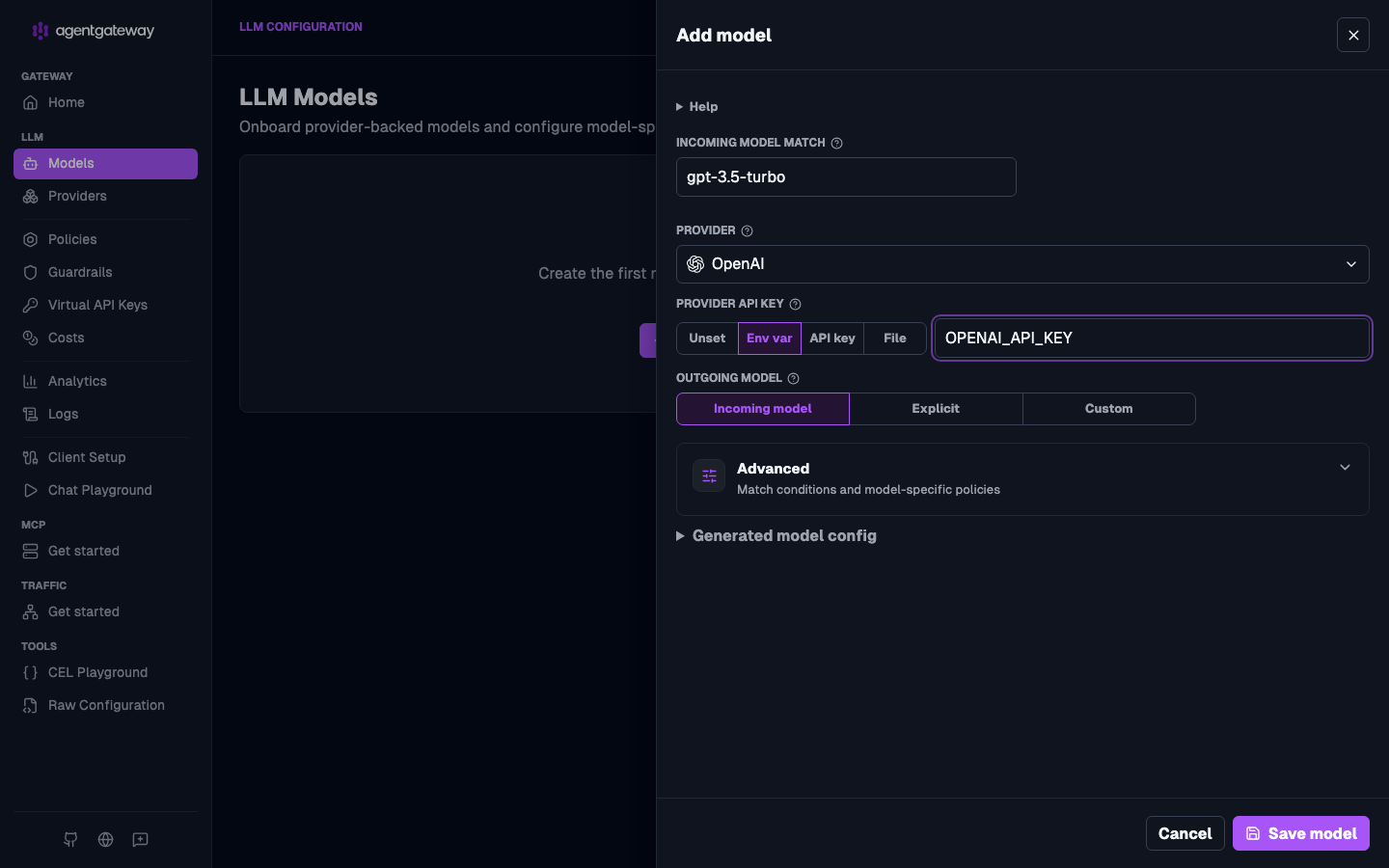
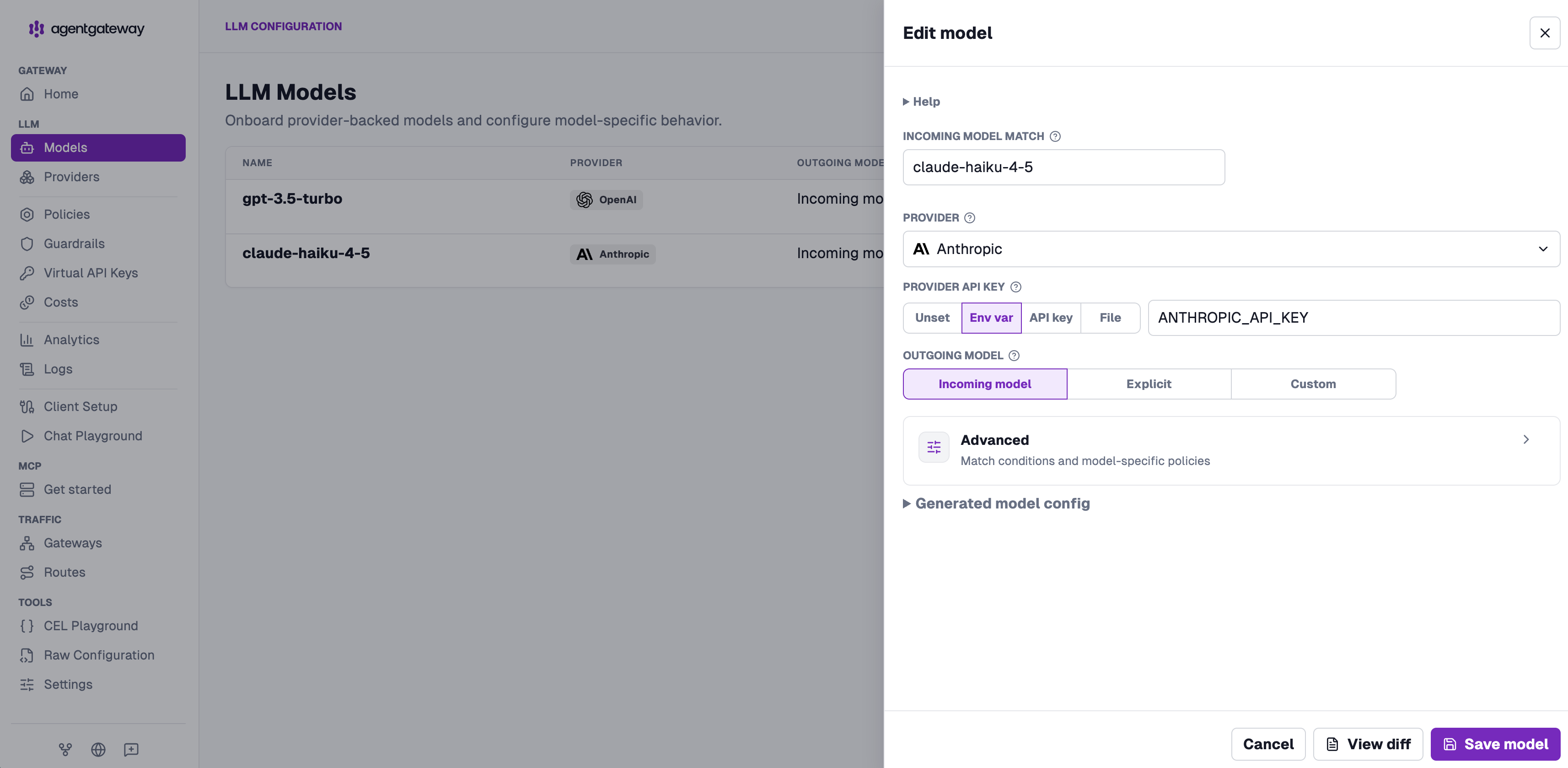
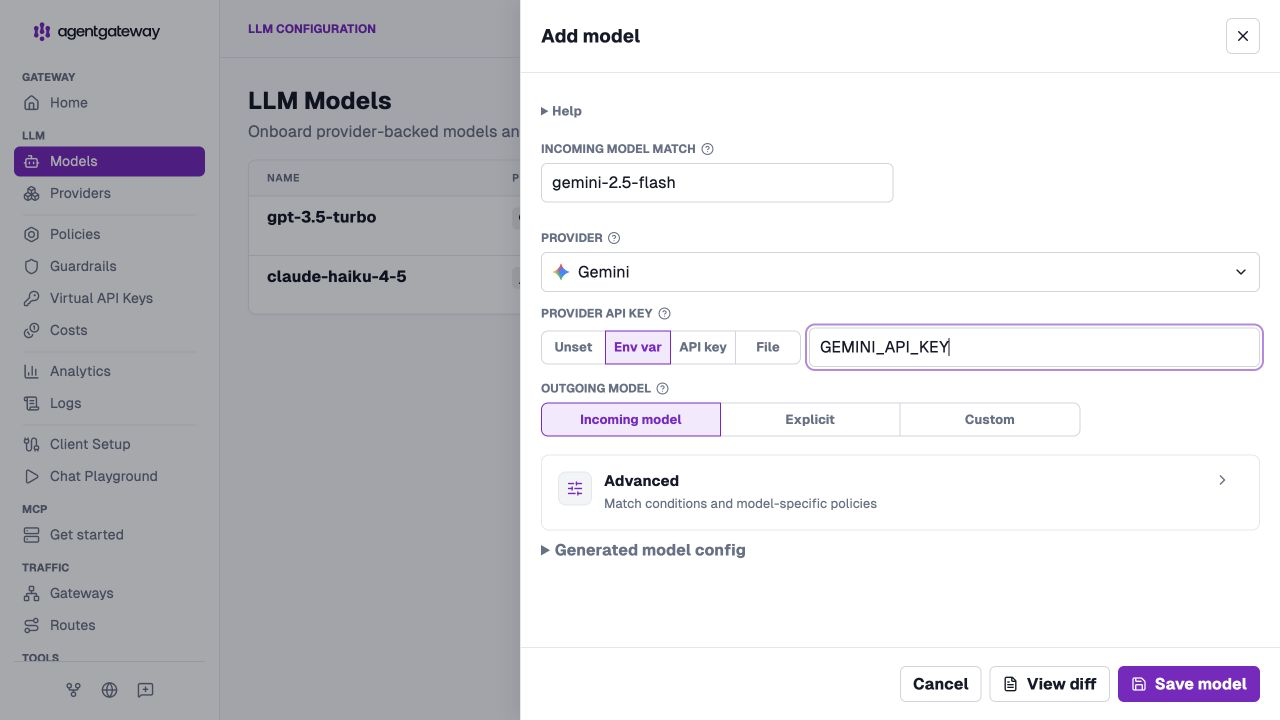
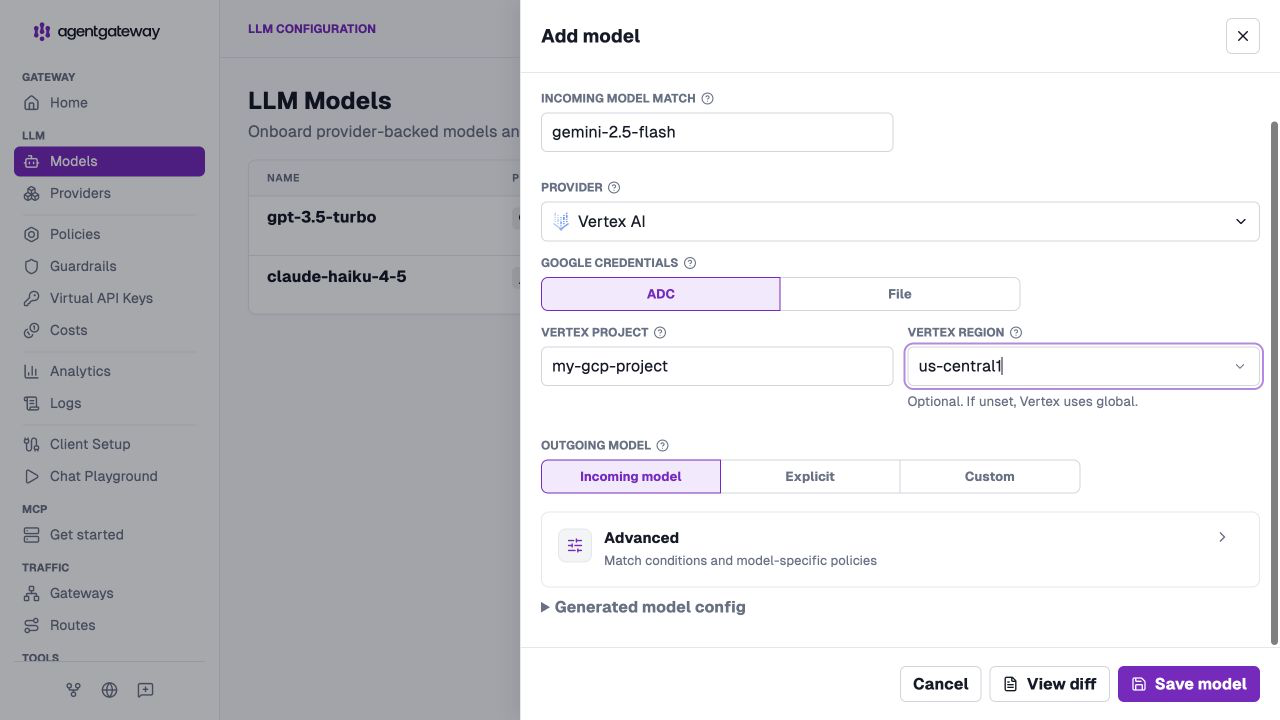
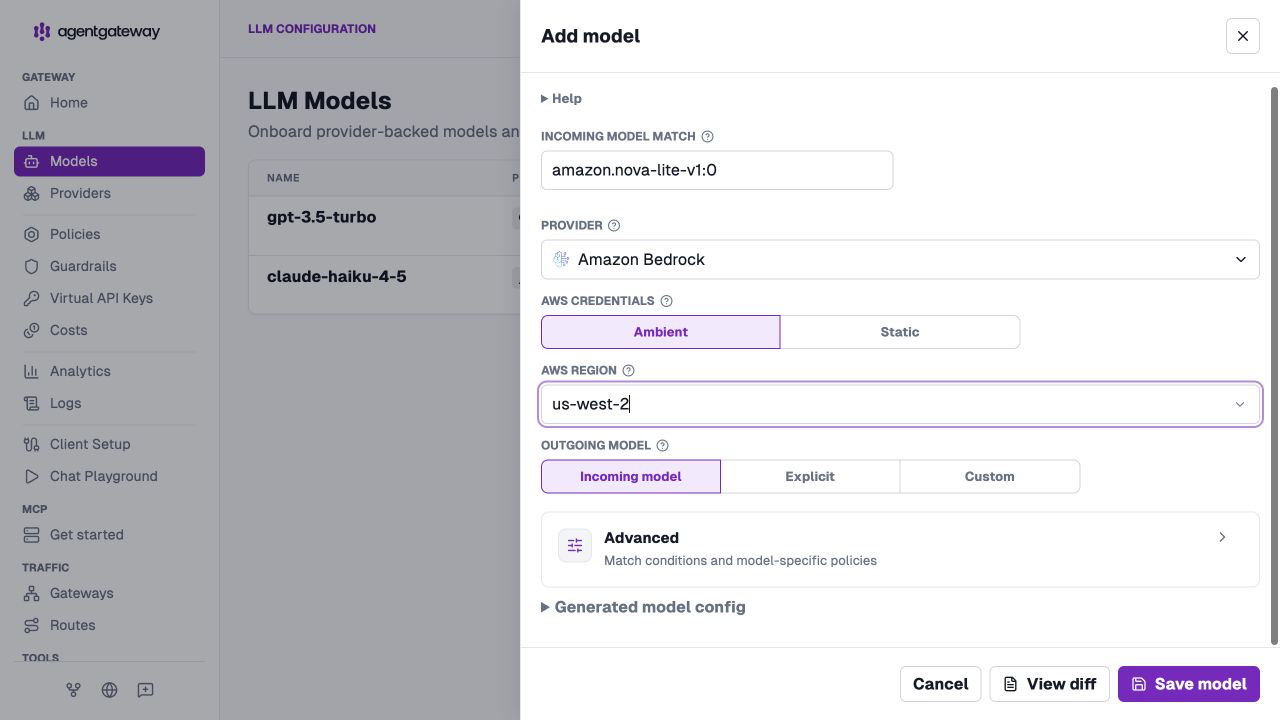
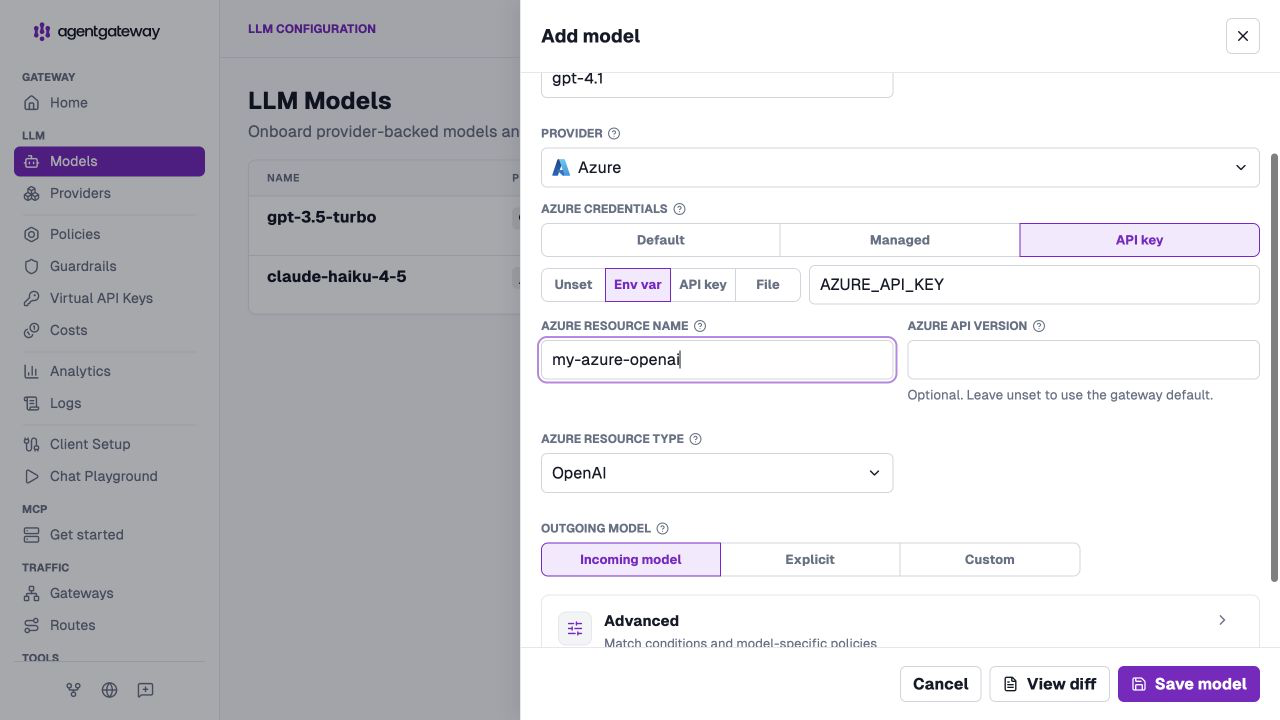
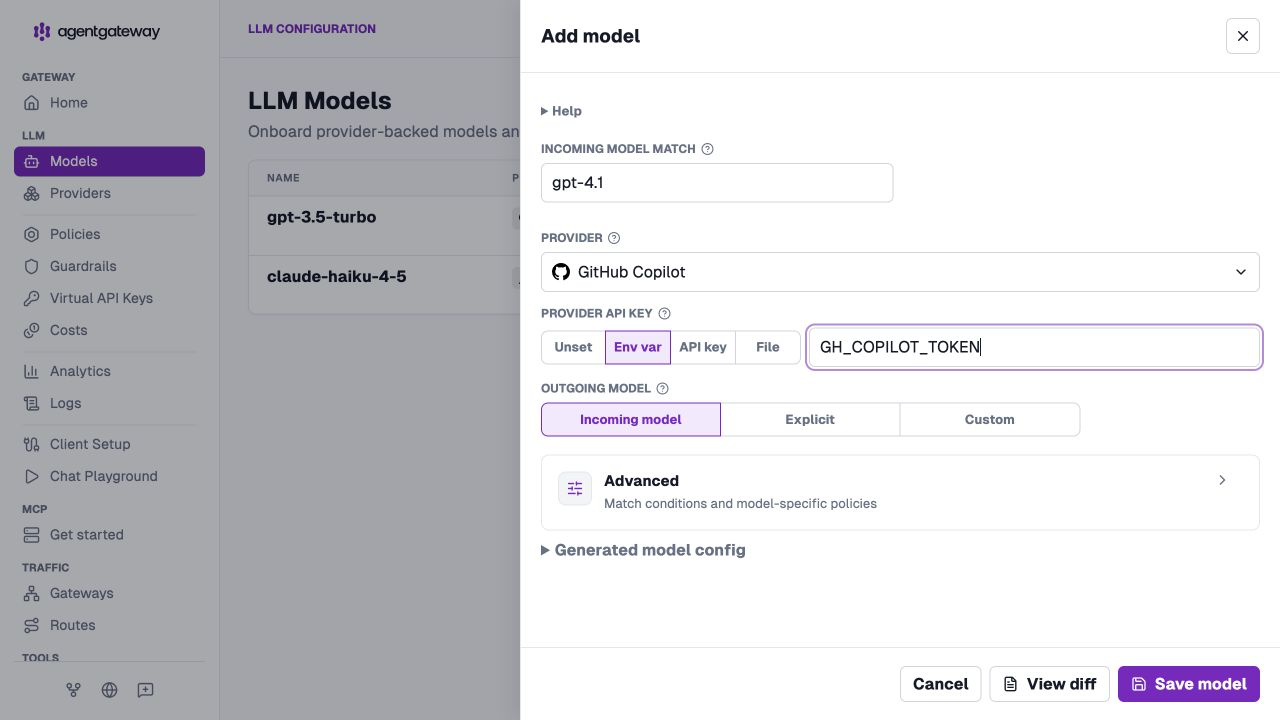
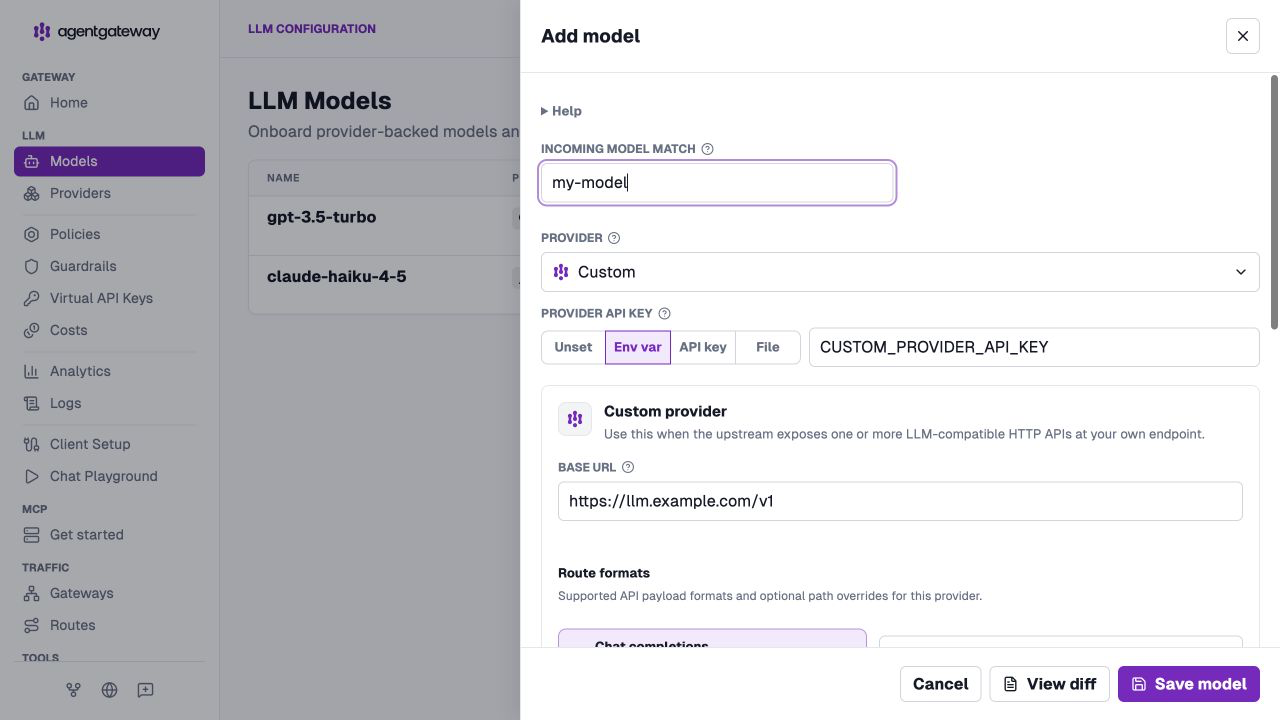
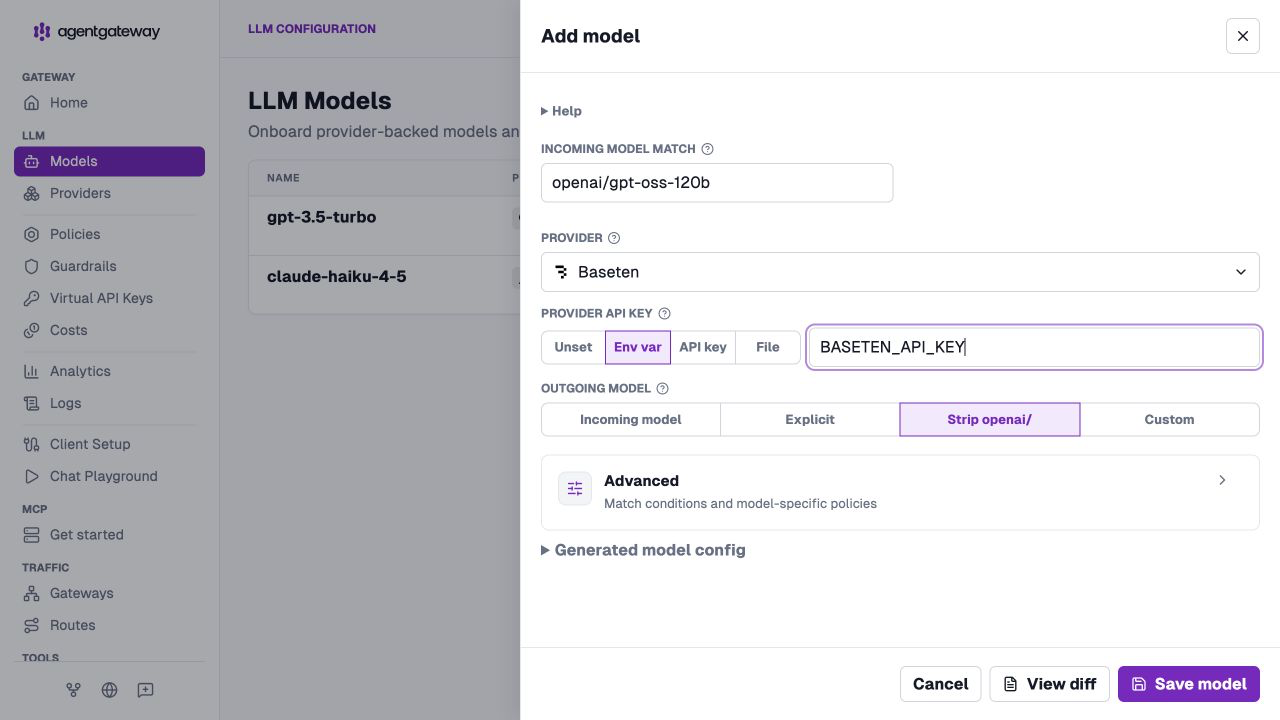
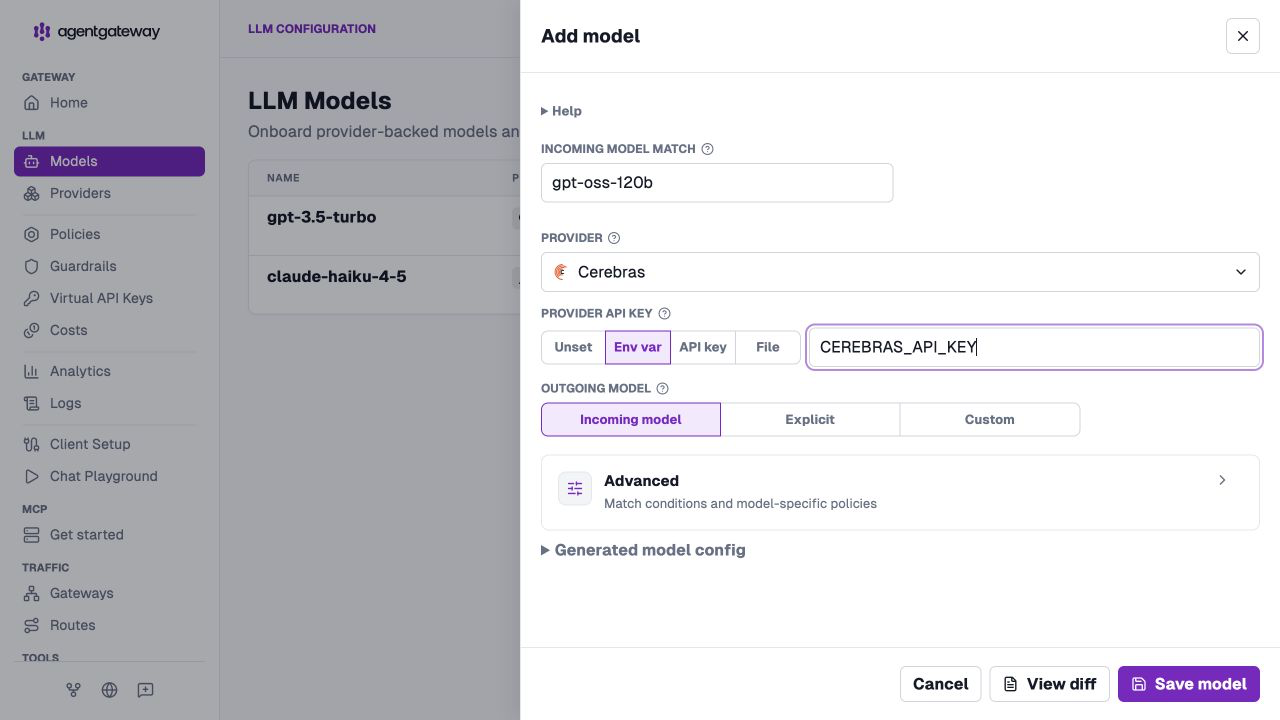
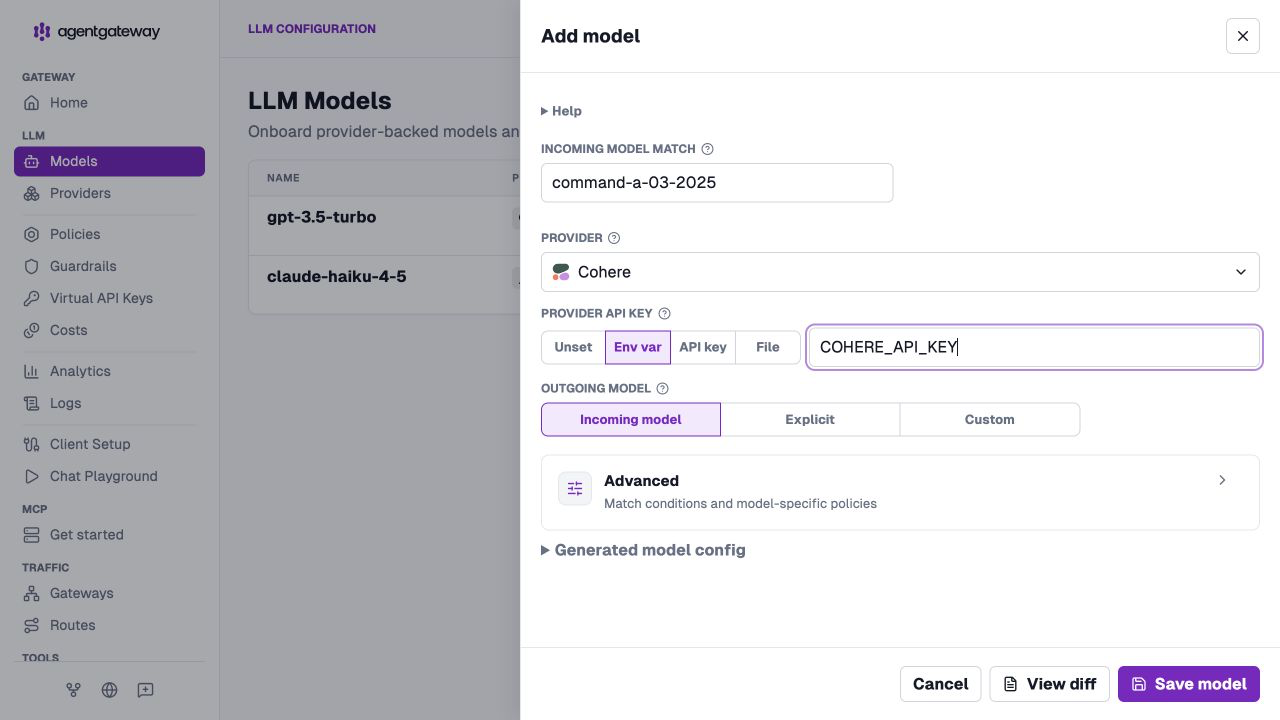
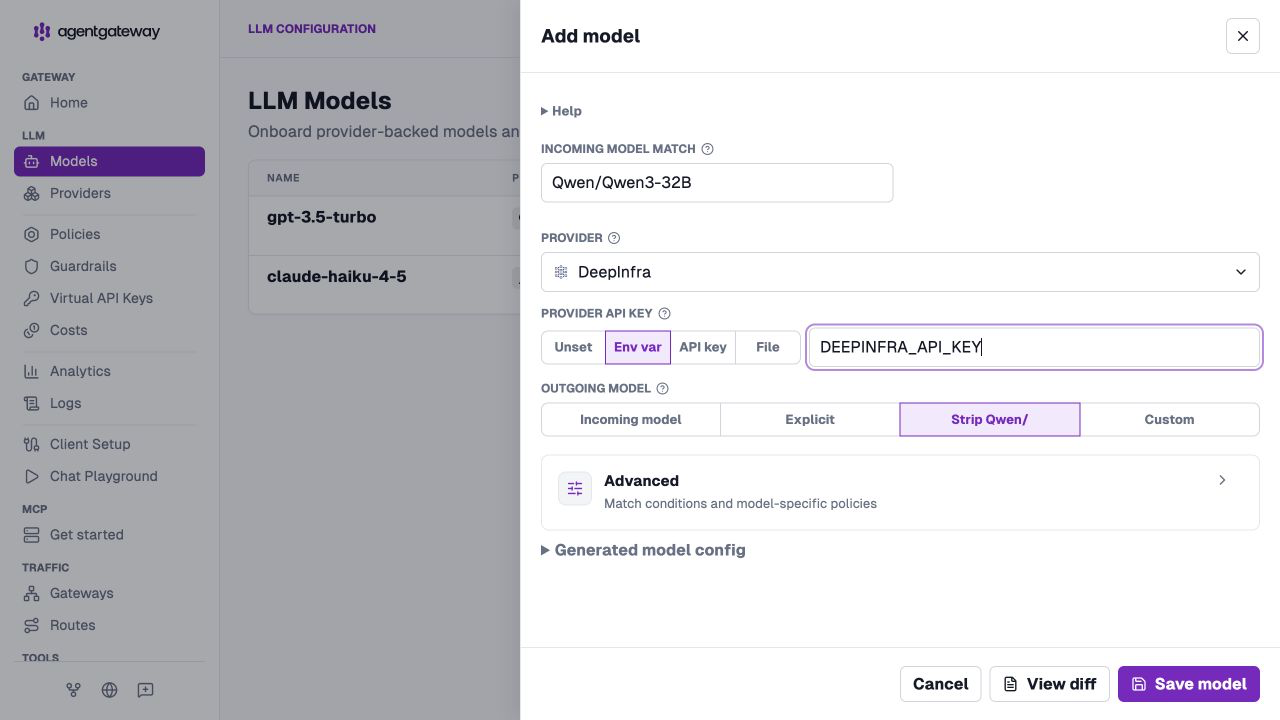
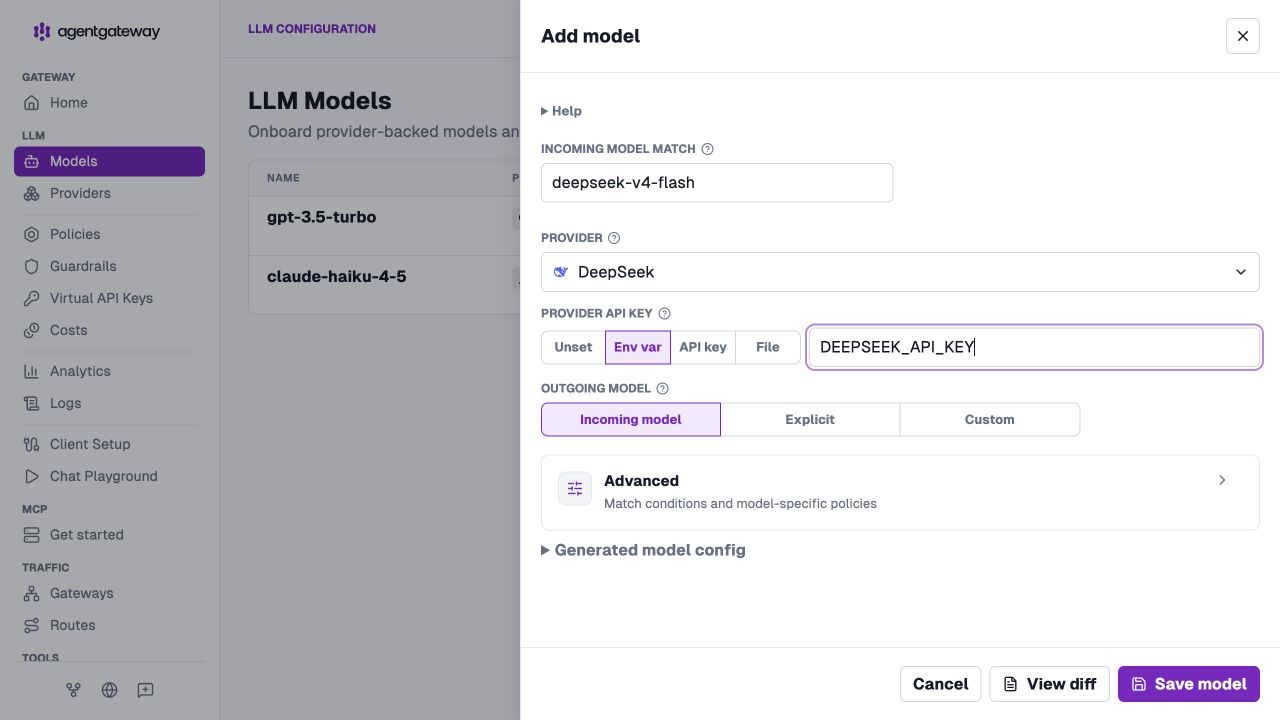
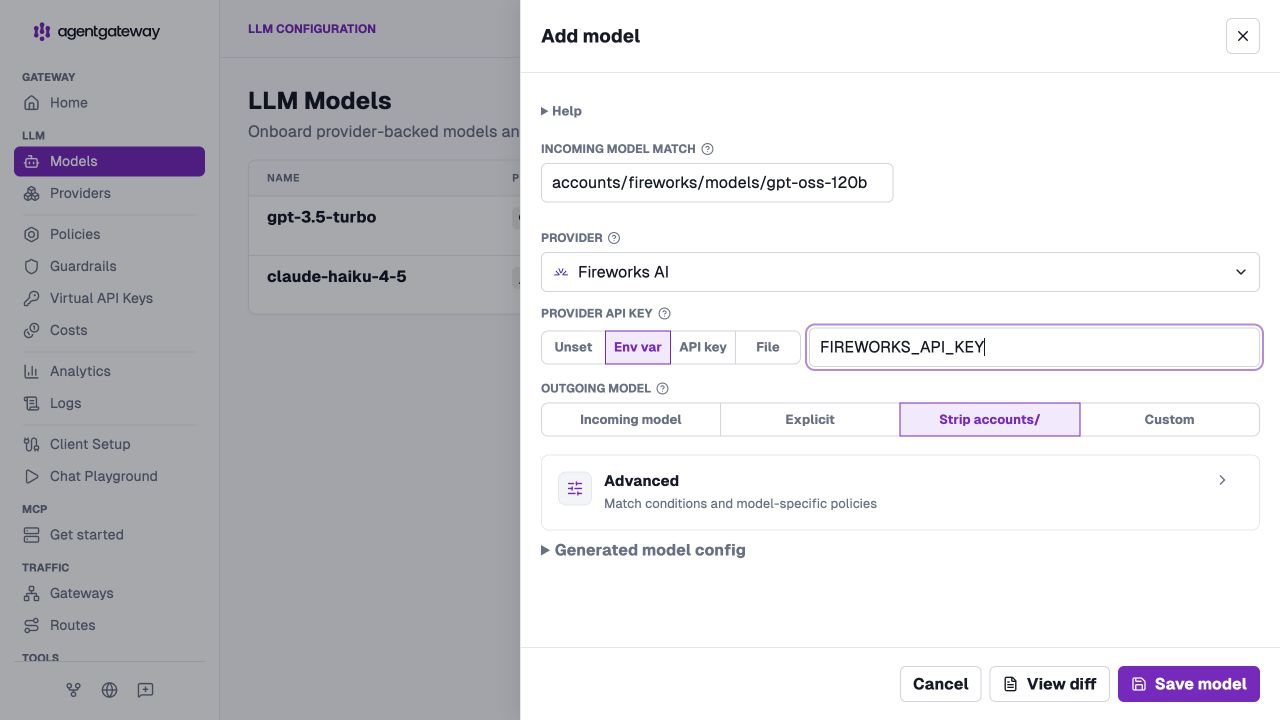
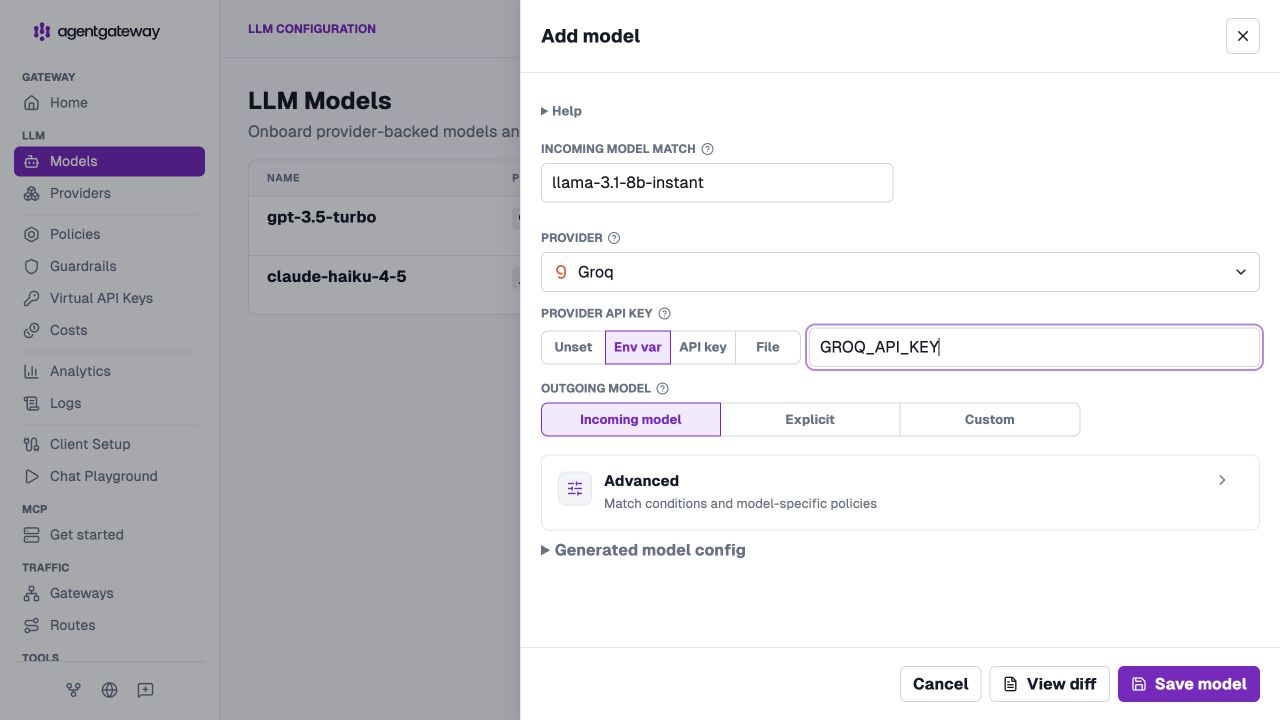
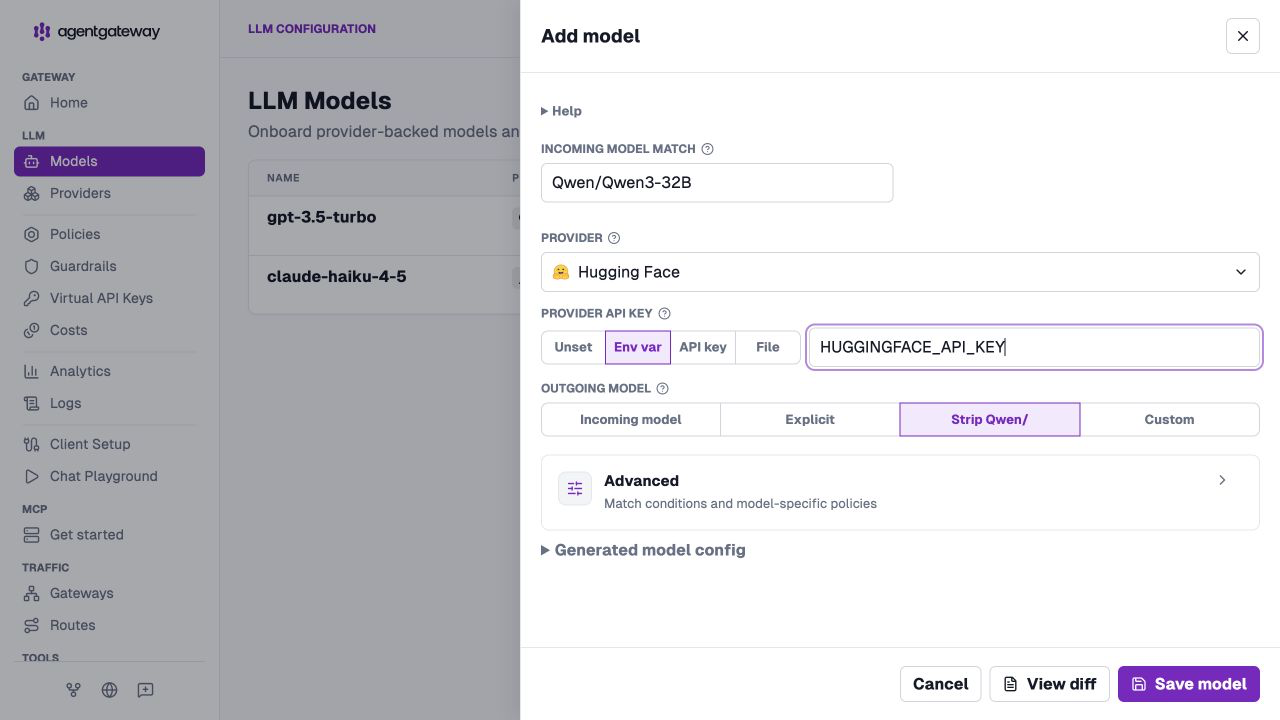
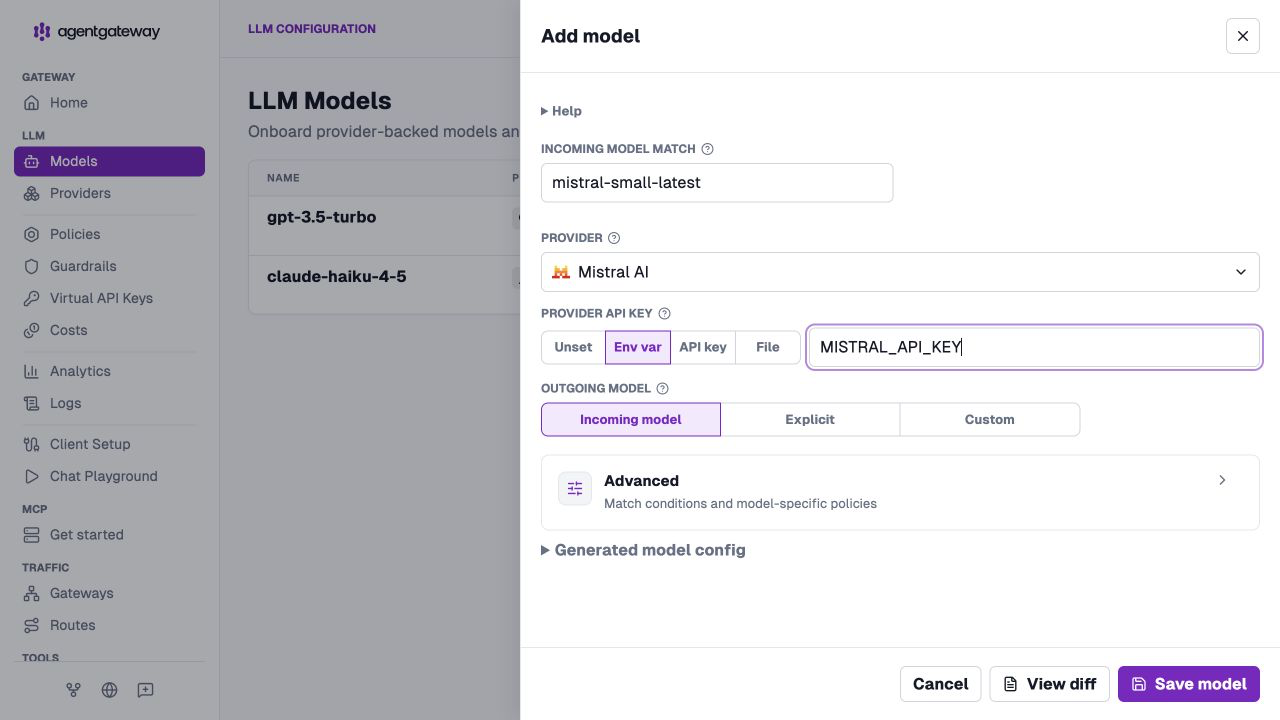
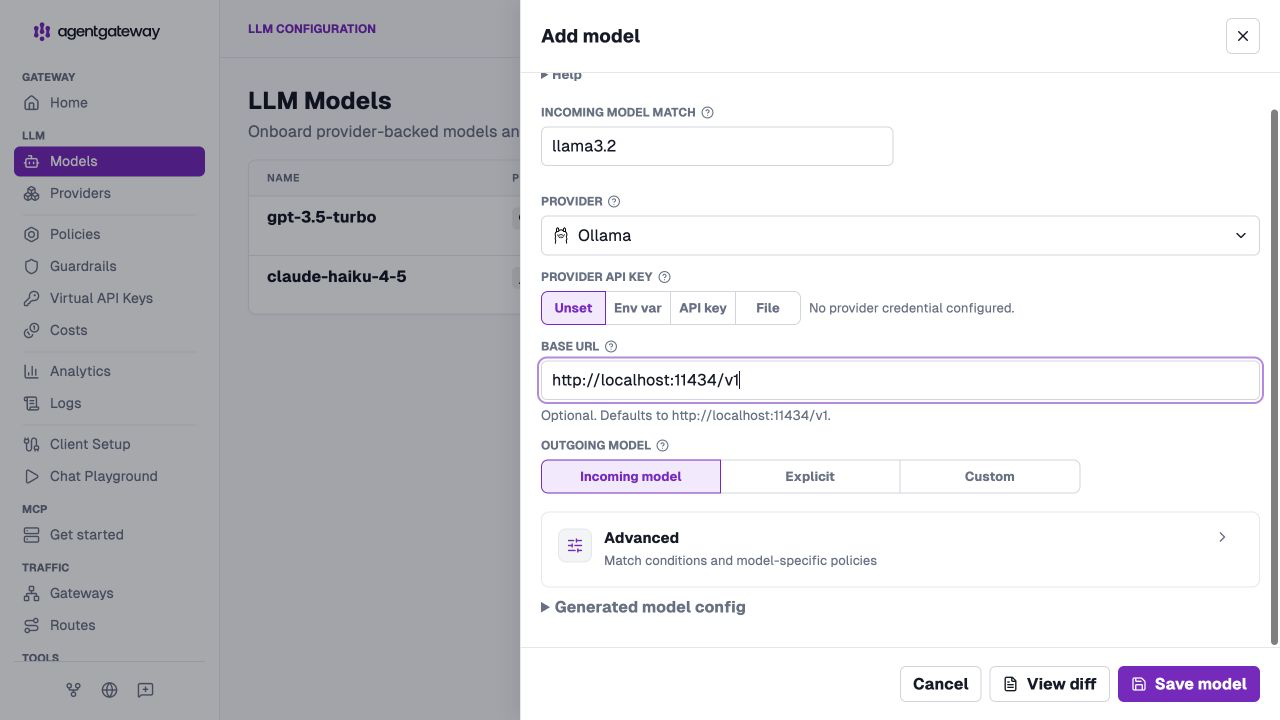
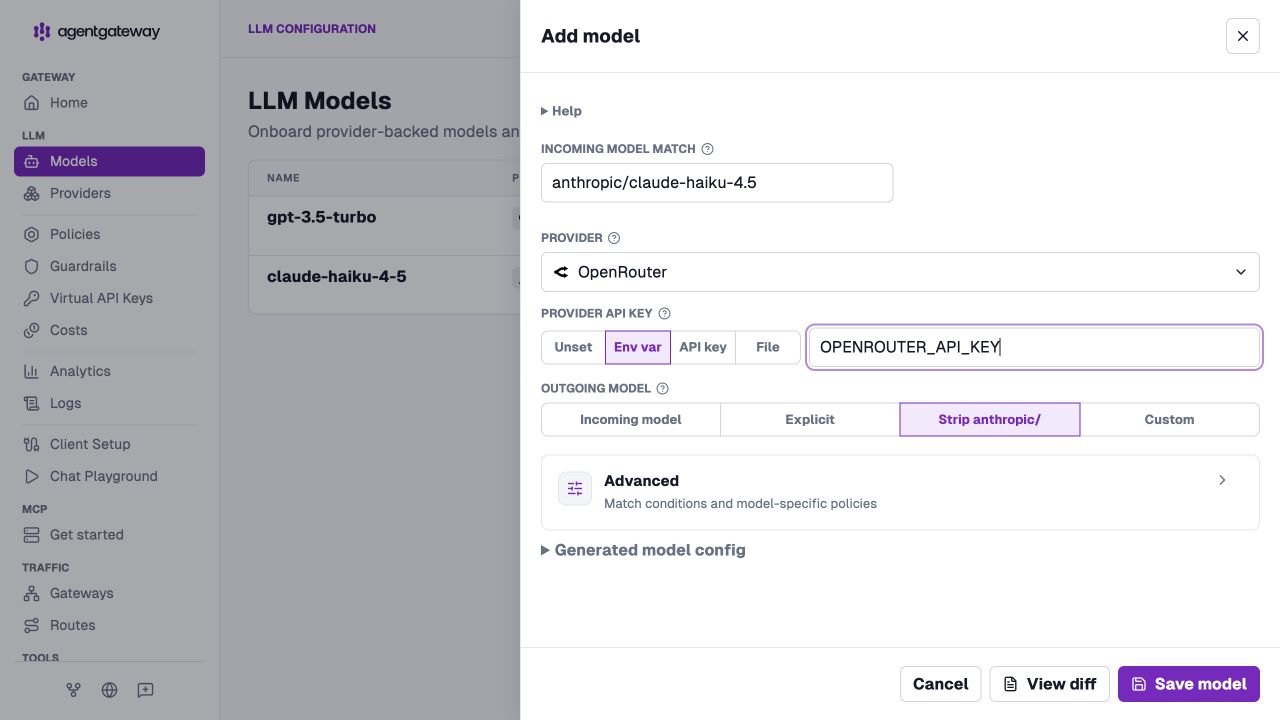
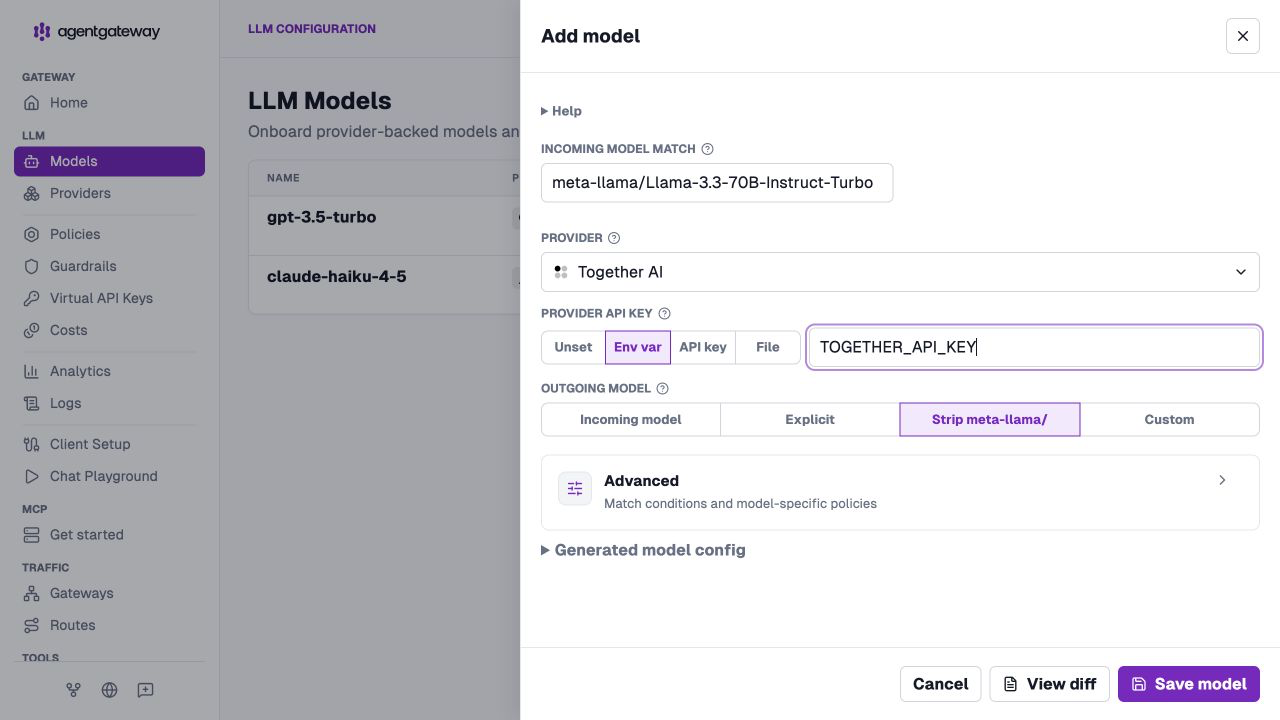
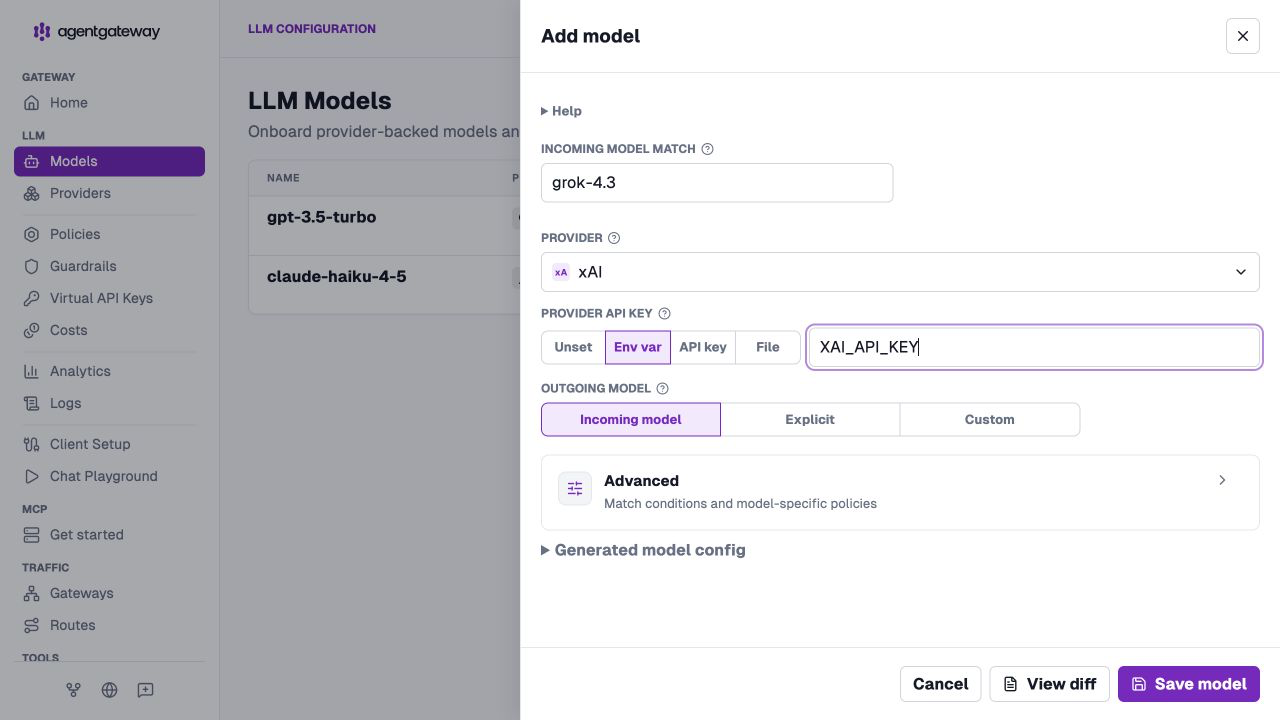
In the LLM section of the navigation menu, click Models, and then click Add model. Follow the tab for your provider.
- For Incoming model match, enter
gpt-3.5-turbo. - From Provider, select OpenAI.
- For Provider API key, select Env var and enter
OPENAI_API_KEY. - Click Save model.
Step 5: Send a chat completion request
From another terminal, send a request to the chat completions endpoint.
curl http://localhost:4000/v1/chat/completions \
  -H 'content-type: application/json' \
  -d '{
    "model": "gpt-3.5-turbo",
    "messages": [
      {
        "role": "user",
        "content": "Reply with exactly: OpenAI through agentgateway works"
      }
    ]
}'You can send the same request from the built-in playground.
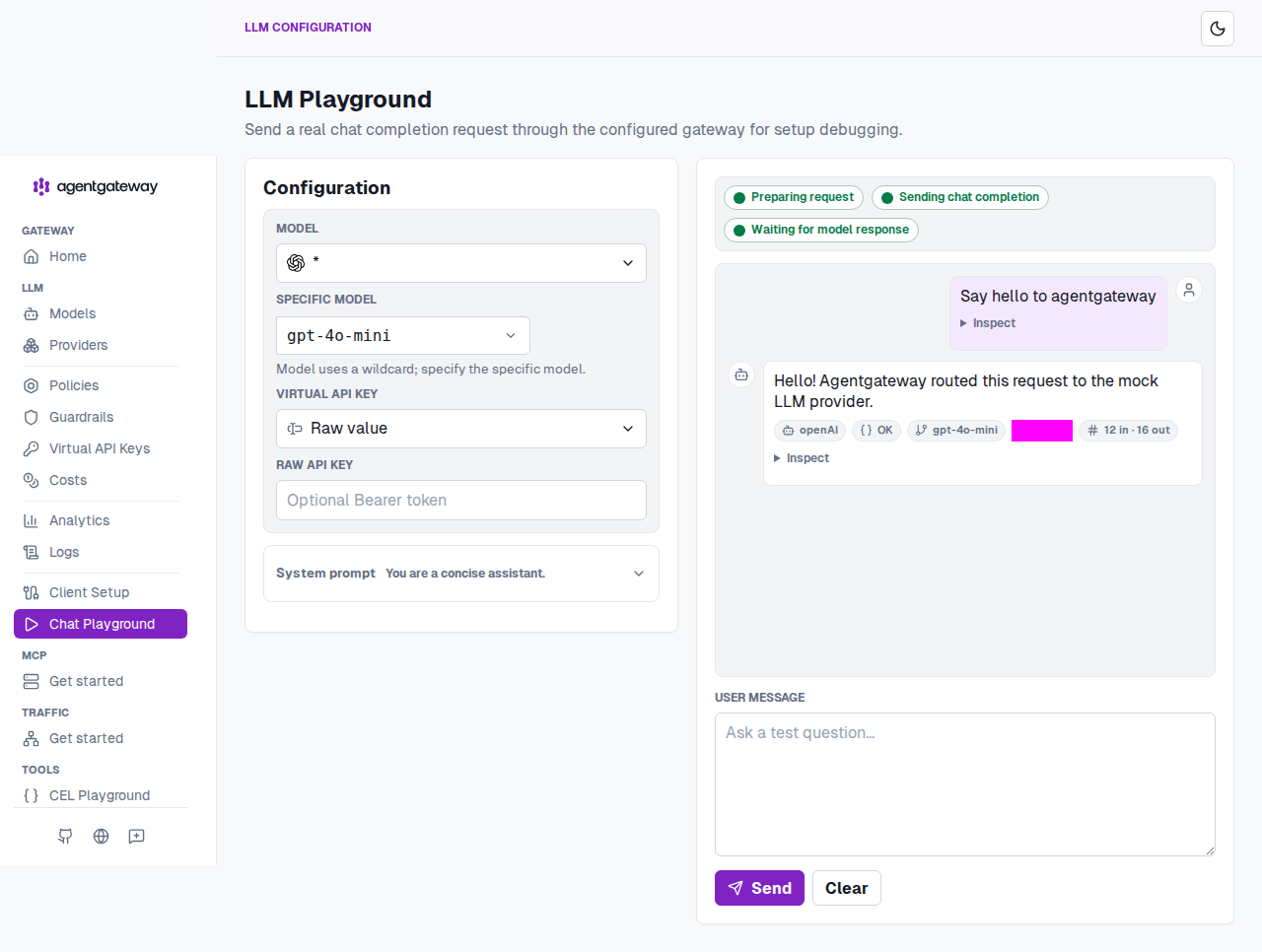
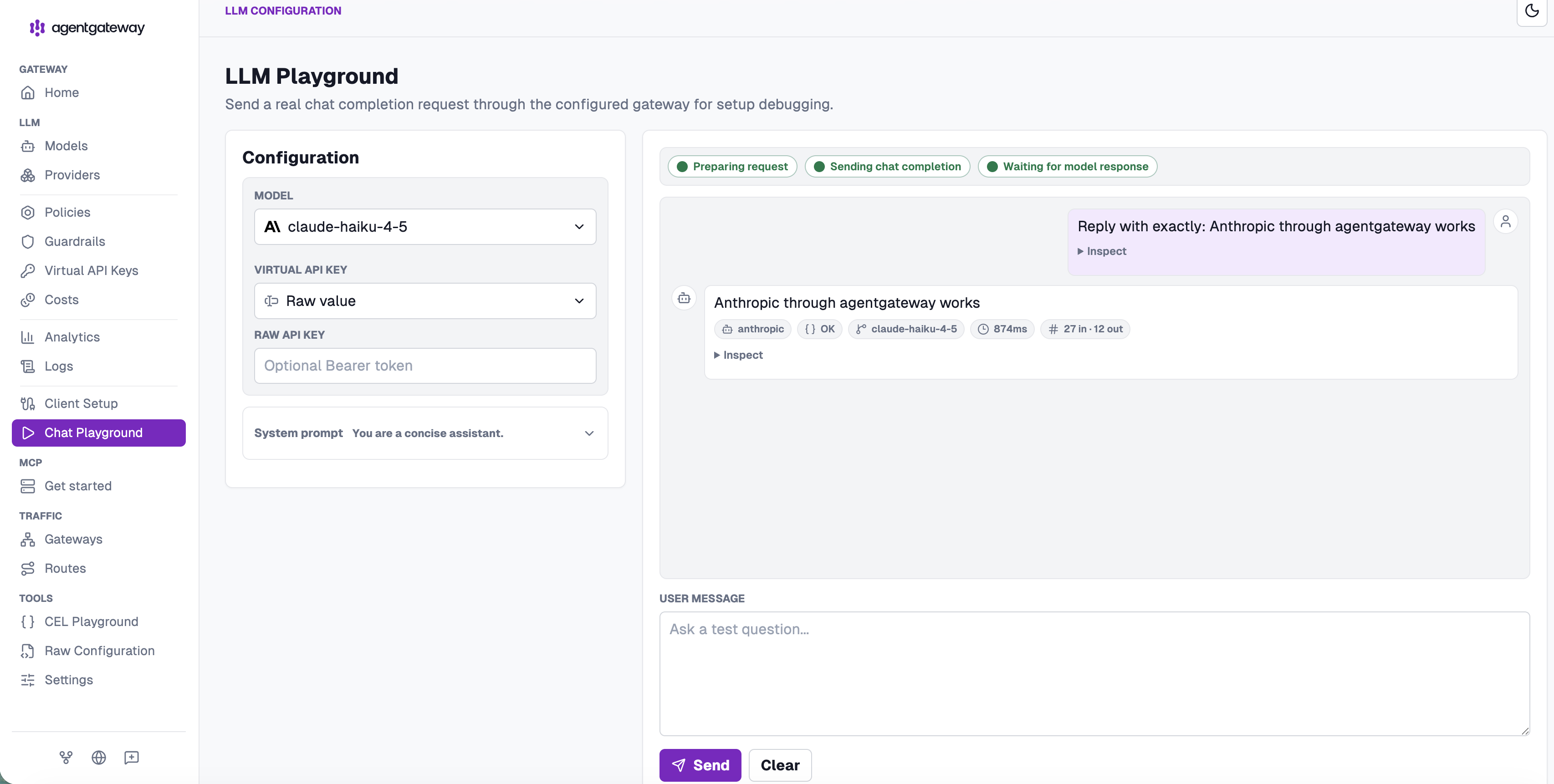
- Open the LLM playground.
- From Model, select
gpt-3.5-turbo. - In User message, enter
Reply with exactly: OpenAI through agentgateway works. - Click Send.
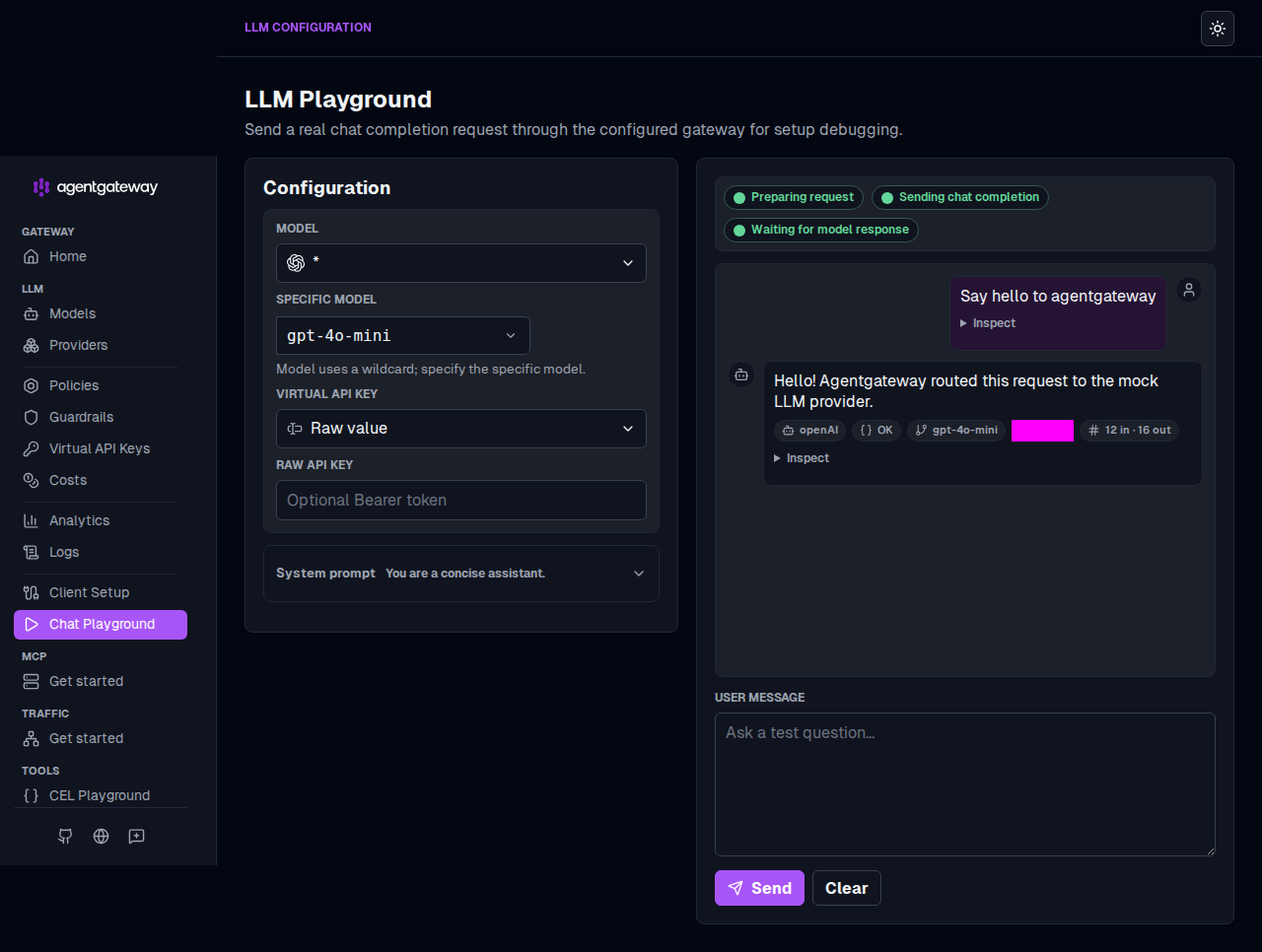
Example successful playground requests:
Next steps
Check out more guides related to LLM consumption with agentgateway.